

Resource Usage in DirectAdmin
Step 1: Log in to DirectAdmin
- Open your DirectAdmin login URL in your web browser.
- Enter your username and password.
- Click Login.
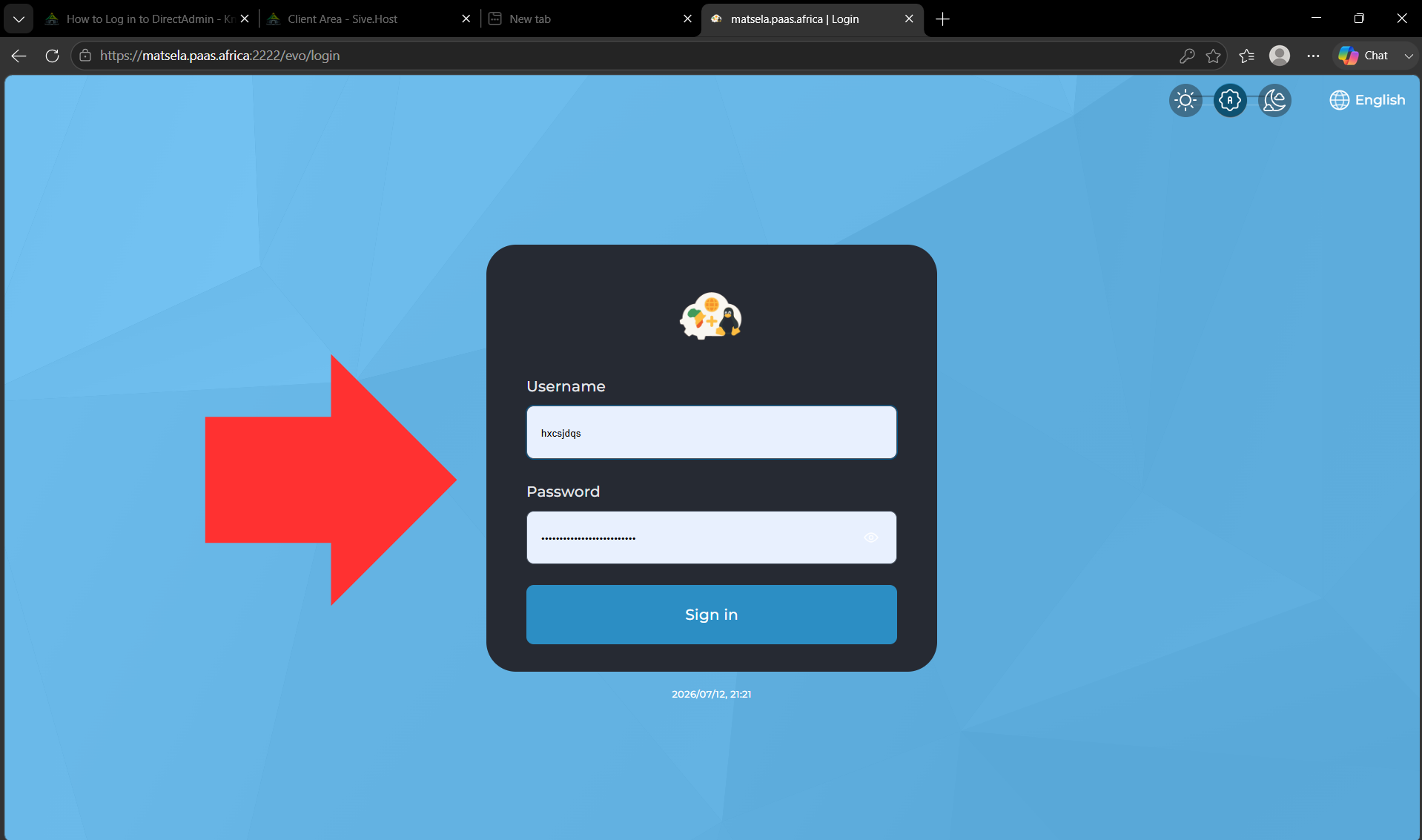
You will be redirected to the DirectAdmin dashboard.
Step 2: Navigate to Resource Usage
- From the left-hand navigation menu, click Extra Features to expand the section.
- Click Resource Usage.
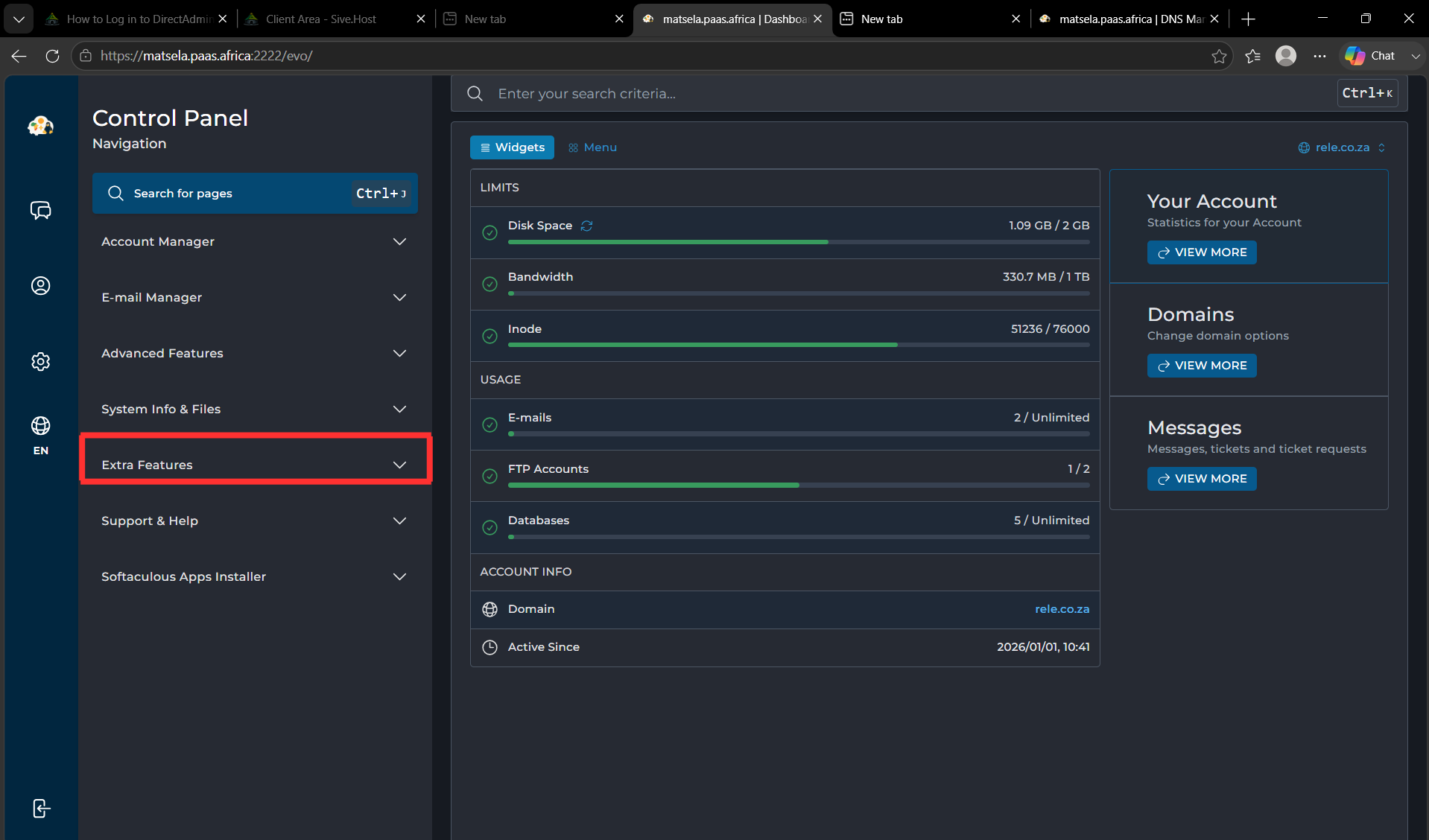
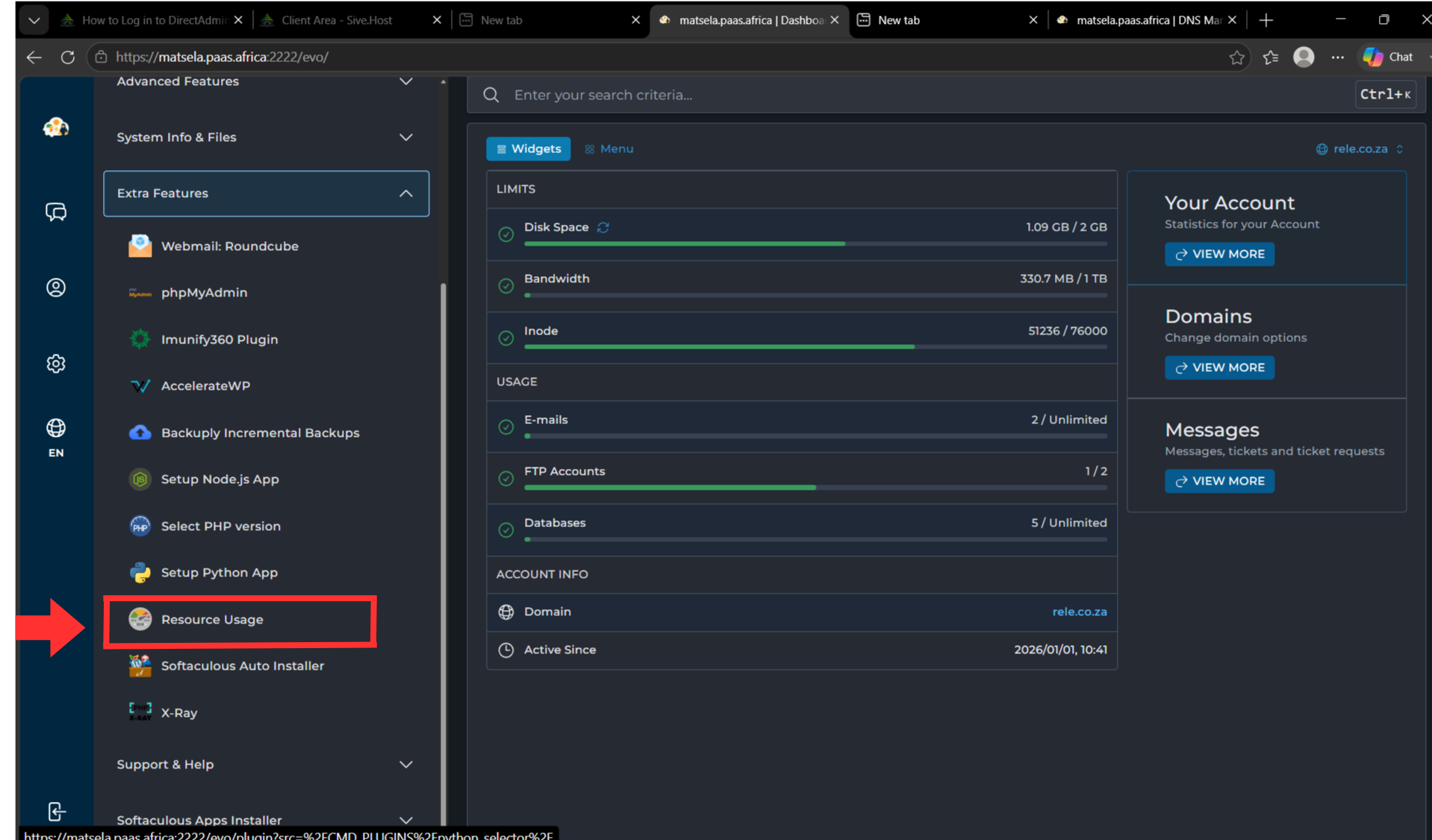
You will be redirected to the Resource Usage page.
Step 3: Verify That the Resource Usage Page Opens
Once the page loads successfully, you will see the Resource Usage dashboard. From here, you can navigate between the available tabs, such as:
- Dashboard
Access the Dashboard tab to see the overall resource usage status.
- Current Usage
Select the Current Usage tab to view your account's current resource usage.
- Snapshot
Open the Snapshot tab to review a summary of your resource usage at a specific point in time.
- Options
Use the Options tab to configure available Resource Usage settings, if applicable.
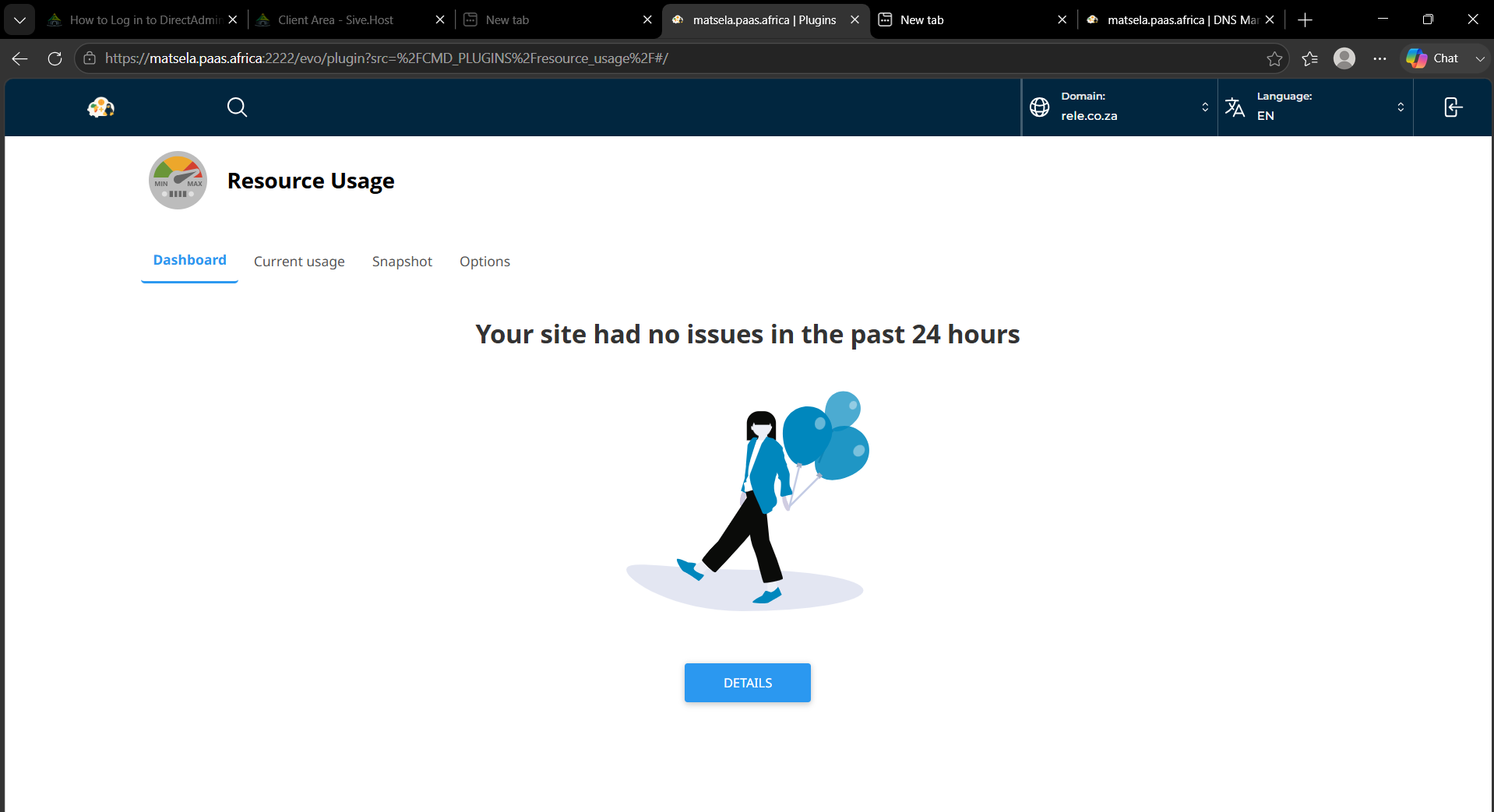
Note: This message, "Your site had no issues in the past 24 hours," indicates that no resource limits have been exceeded during that period.
This confirms that you have successfully accessed the Resource Usage section in DirectAdmin.
